Playground
Overview
The Playground is an interactive interface in Armada Bridge's AI Studio that lets you test deployed models and run queries in real time — without writing any code. AI Studio allows tenant users to consume the infrastructure and deployed models created by the Tenant Admin for model training and inference purposes.
Prerequisites
Before you can use the Playground, ensure that:
- A tenant user account has been created by a Tenant Admin
- A model has been deployed by the Tenant Admin beforehand
Refer to the Manage Tenant Users section to create a tenant user.
Accessing the Playground
Step 1: Open AI Studio
-
Log in to Armada Bridge as a tenant user (for example,
tenantuser). -
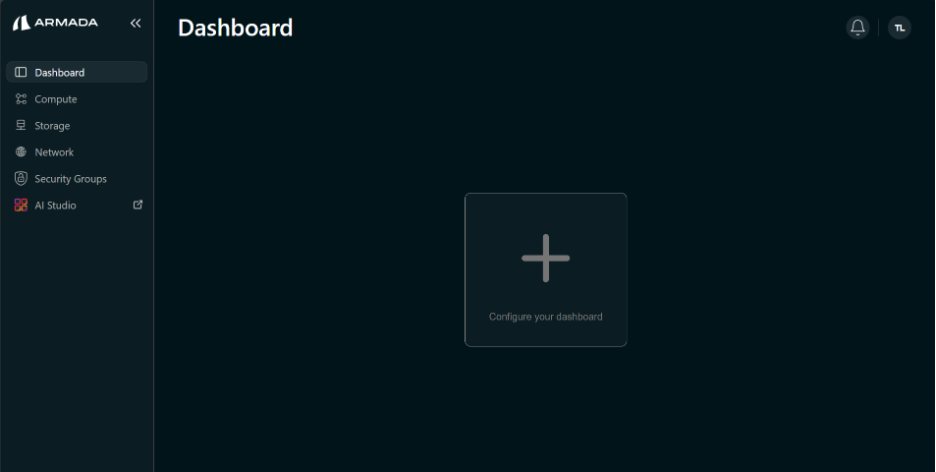
In the left sidebar, click AI Studio. This opens AI Studio in a new tab.
Step 2: Open the Model in the Playground
-
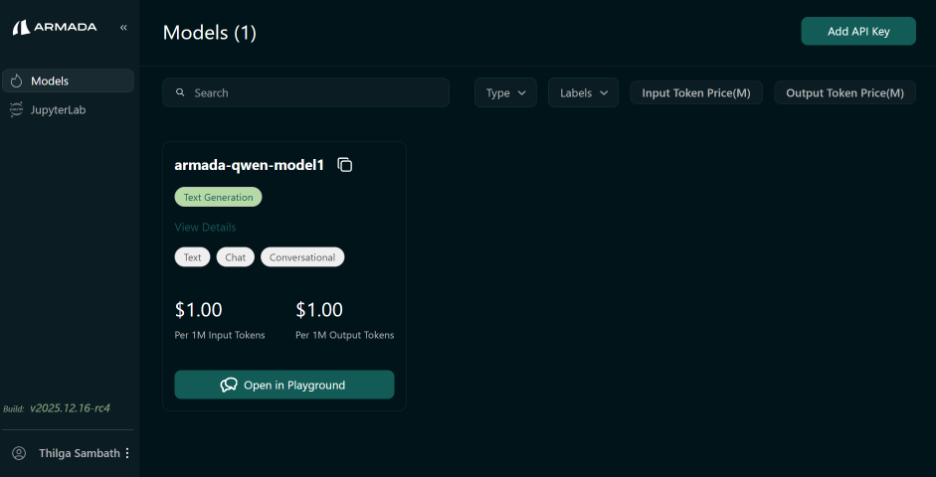
In the AI Studio tab, click Models in the sidebar.
-
Locate the deployed model and click Open in Playground.
-
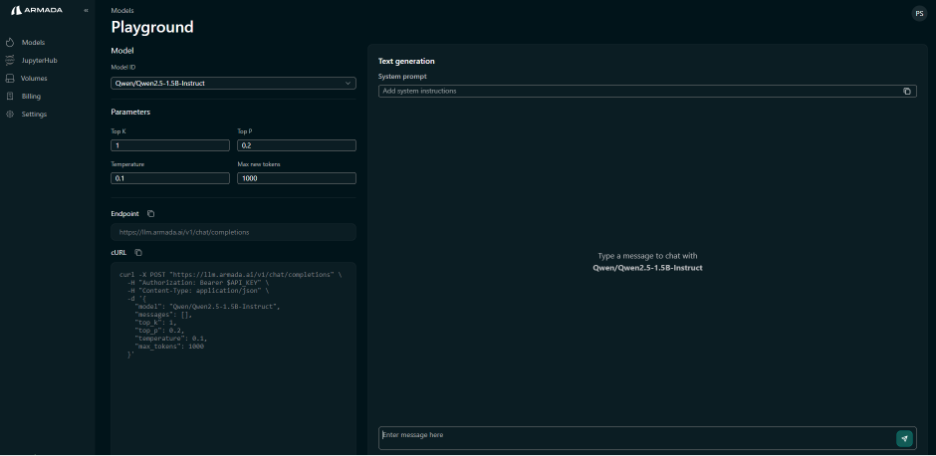
Click Open in Playground to launch the Playground.
Step 3: Handle the First-Login Browser Security Warning
On the first login, the Playground may display an error message if the model endpoint does not have an authorized certificate. To resolve this:
-
Copy the model endpoint URL from the top-right of the Playground page.
-
Open a new browser tab and paste the URL.
-
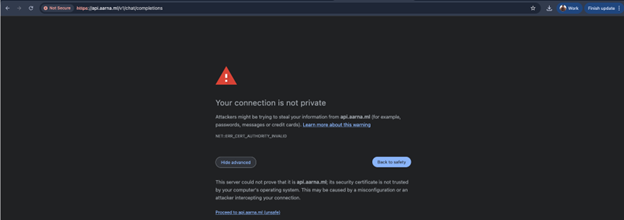
When the browser shows a security warning, click Advanced.

-
Click Proceed to [site] (unsafe) or Accept the risk and continue.
-
The browser will show a "404 page not found" message — this is expected.
-
Return to the Playground tab and refresh the page if needed.
This one-time step establishes trust for the endpoint in your browser. You do not need to repeat it for the same endpoint.
Step 4: Run Queries
You can now run queries in the prompting interface.
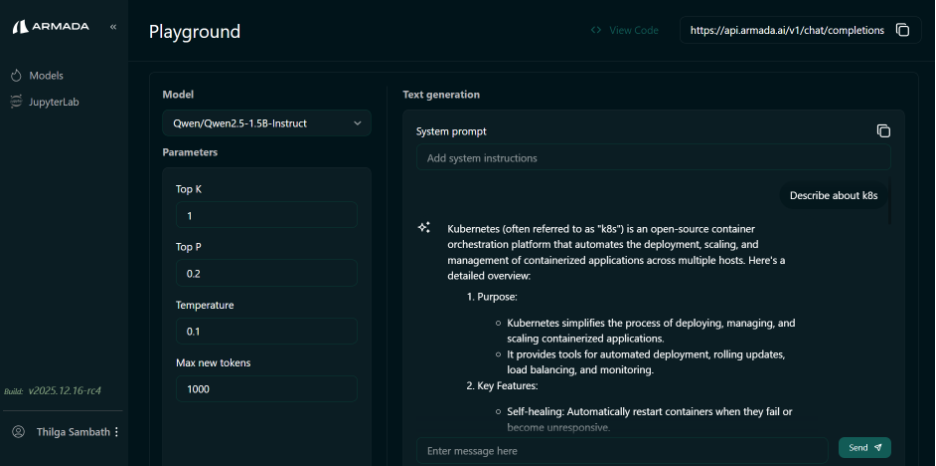
Tenant user isolation is enforced in Armada Bridge. One tenant user cannot view another tenant user's Playground. Each tenant user (for example, tenantuser1 and tenantuser2) must complete the steps above with their own login to access their own Playground.