Manage Workloads
Overview
Workloads are applications and jobs that run on your clusters. Bridge supports both custom workloads and pre-configured catalog workloads.
Create Custom Workload
Custom Workload Definition
Build your own workload from scratch:
- Define containers
- Configure resources
- Set environment variables
- Specify storage needs
Step 1: Create Workload
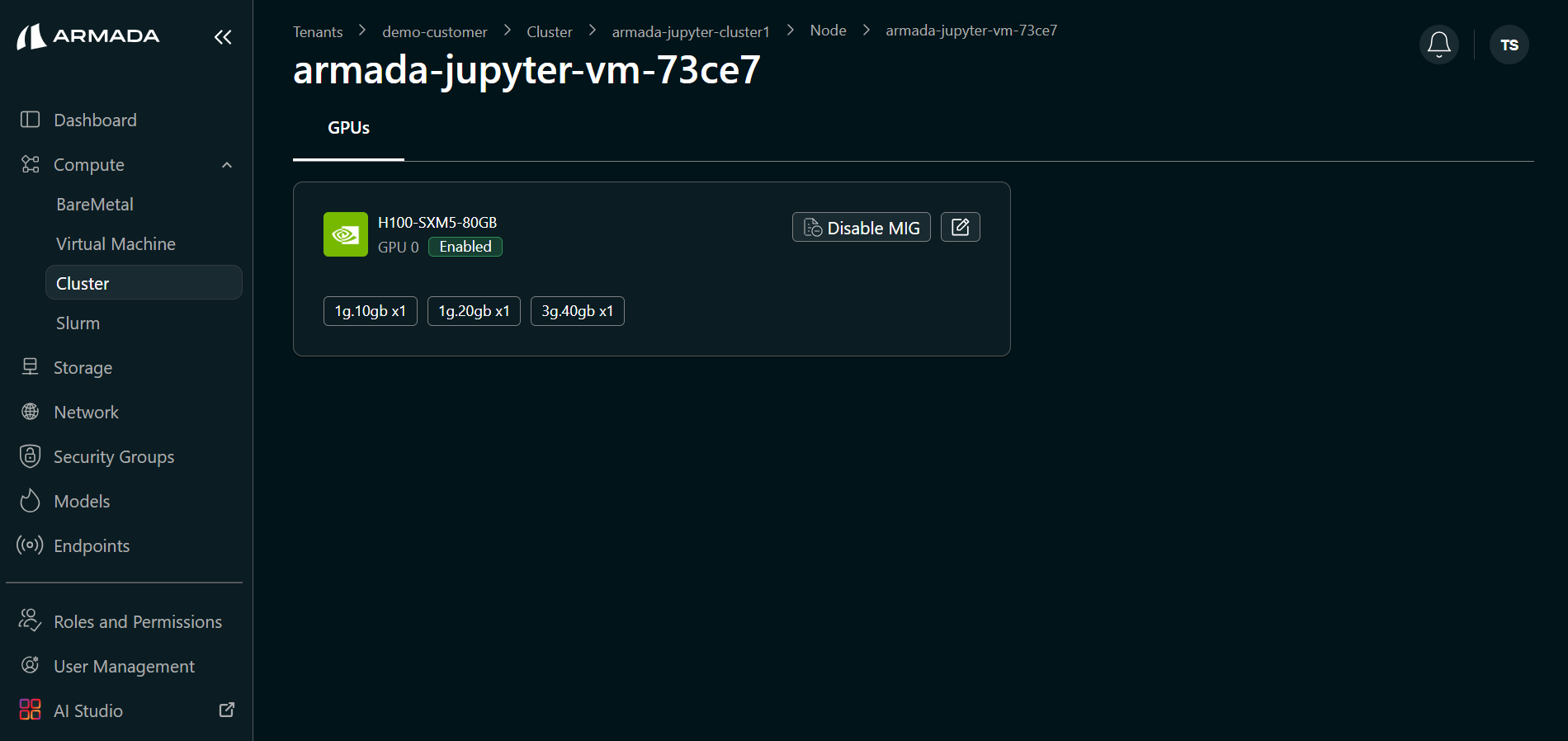
Navigate to Workloads → Create Custom Workload:
Step 2: Configure Container
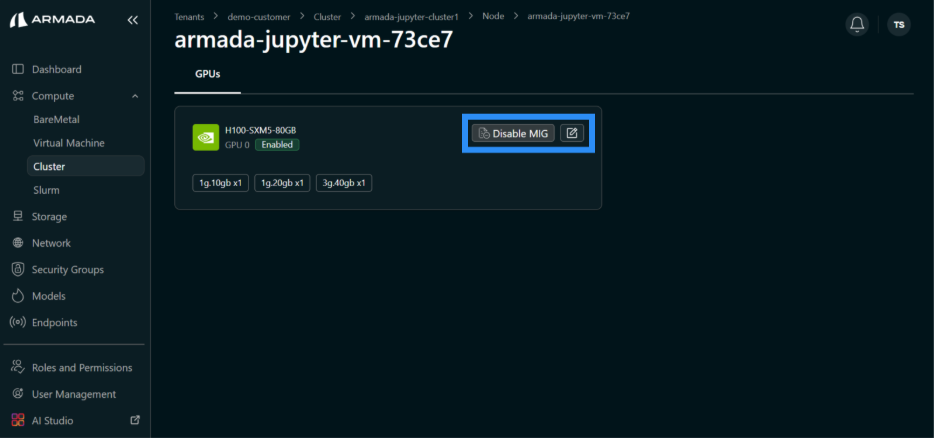
Define your container:
- Image - Docker image to use
- Registry - Container registry (if private)
- Command - Entry point command
- Arguments - Command arguments
Step 3: Set Resources
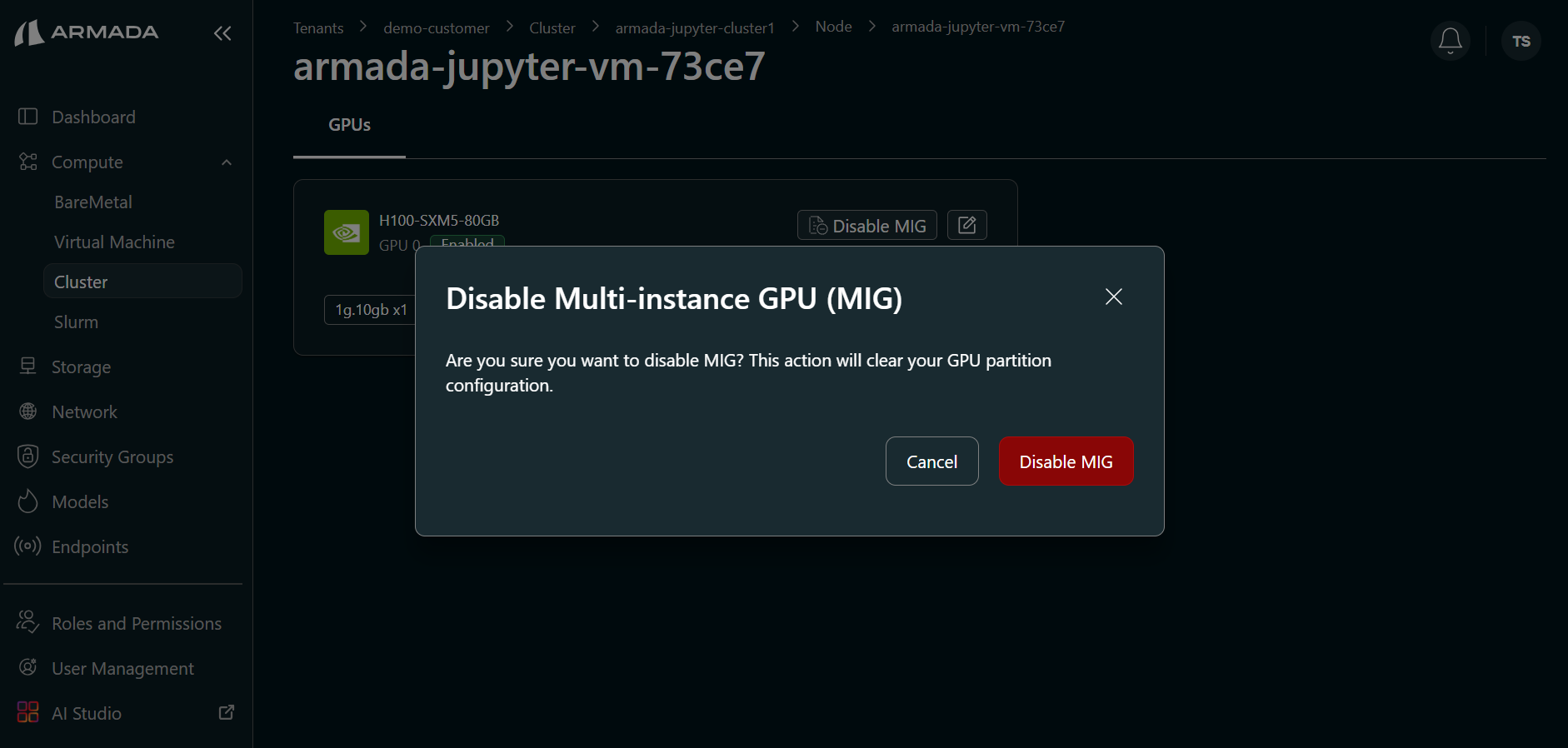
Allocate resources:
resources:
  requests:
    cpu: "2"
    memory: "4Gi"
  limits:
    cpu: "4"
    memory: "8Gi"
Specify:
- CPU cores
- Memory amount
- GPU allocation
- Storage requirements
Step 4: Environment & Storage
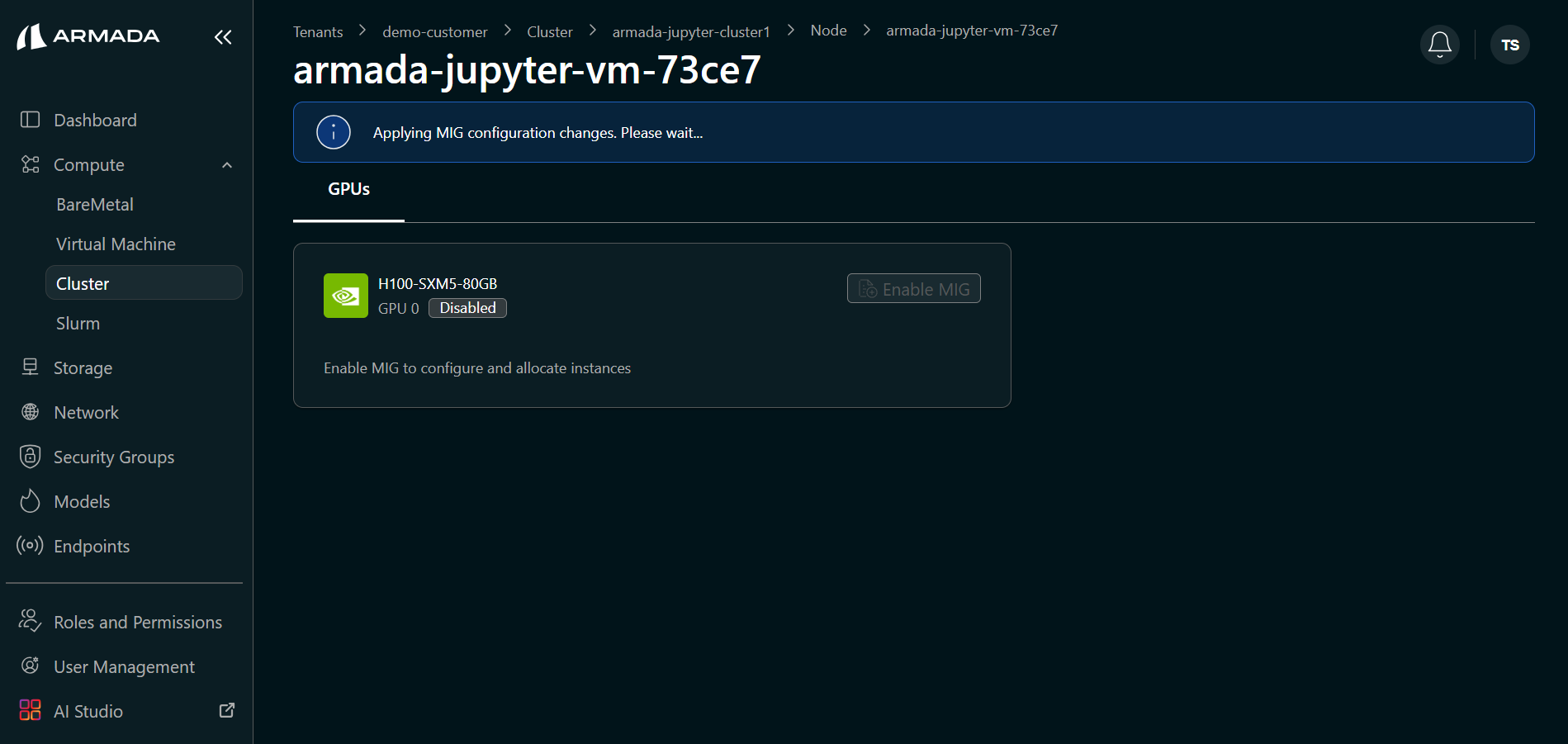
Set environment variables:
ENV_VAR_1=value1
ENV_VAR_2=value2
Configure storage:
- Mount points
- Persistent volumes
- Storage size
Step 5: Deploy Workload
Review configuration and deploy:
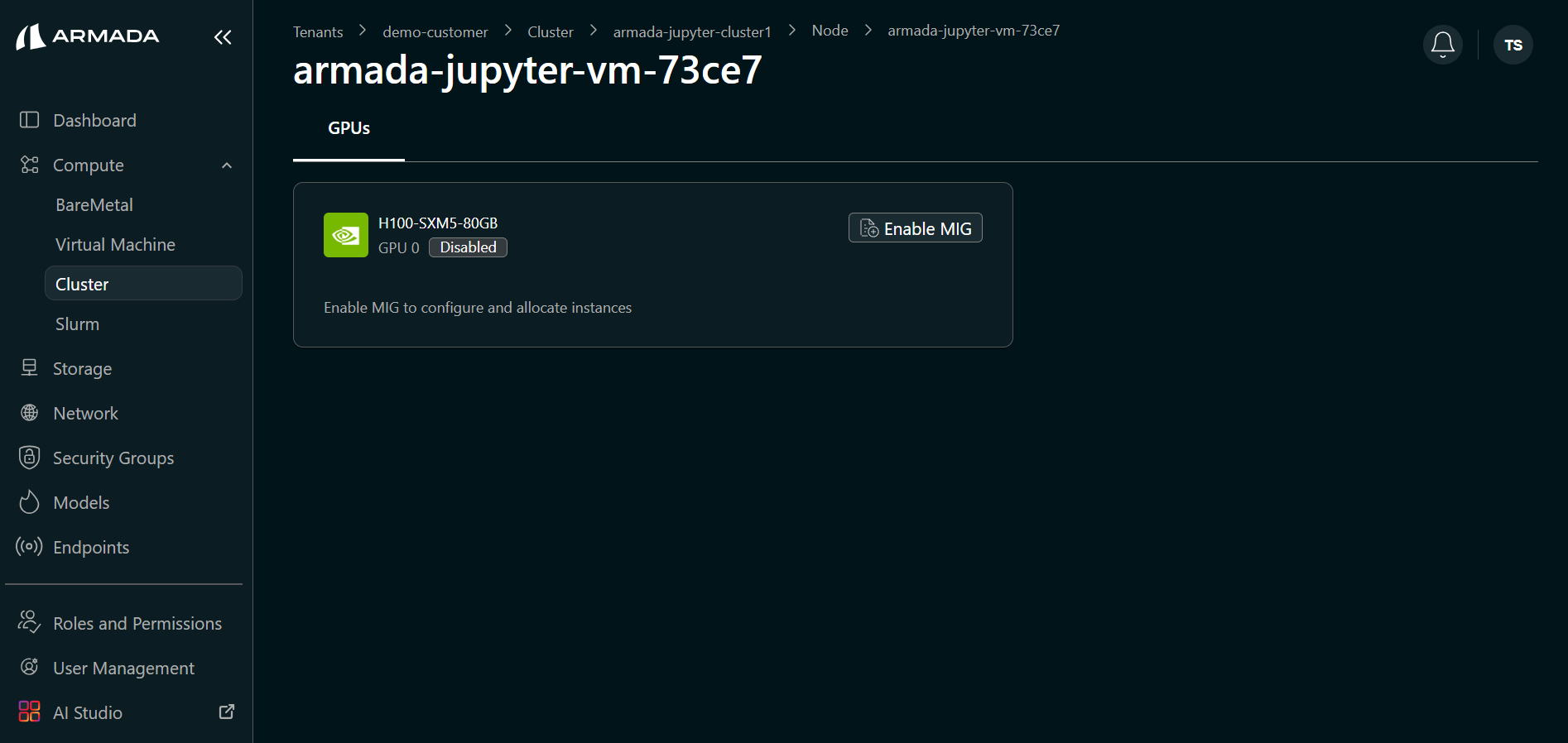
Workload will be:
- Scheduled on cluster
- Pulled from registry
- Started with specified configuration
- Monitored for health
Create Catalog Workload
Pre-Built Templates
Use pre-configured workload templates:
- TensorFlow training
- PyTorch development
- Data processing pipelines
- Web applications
Step 1: Browse Catalog
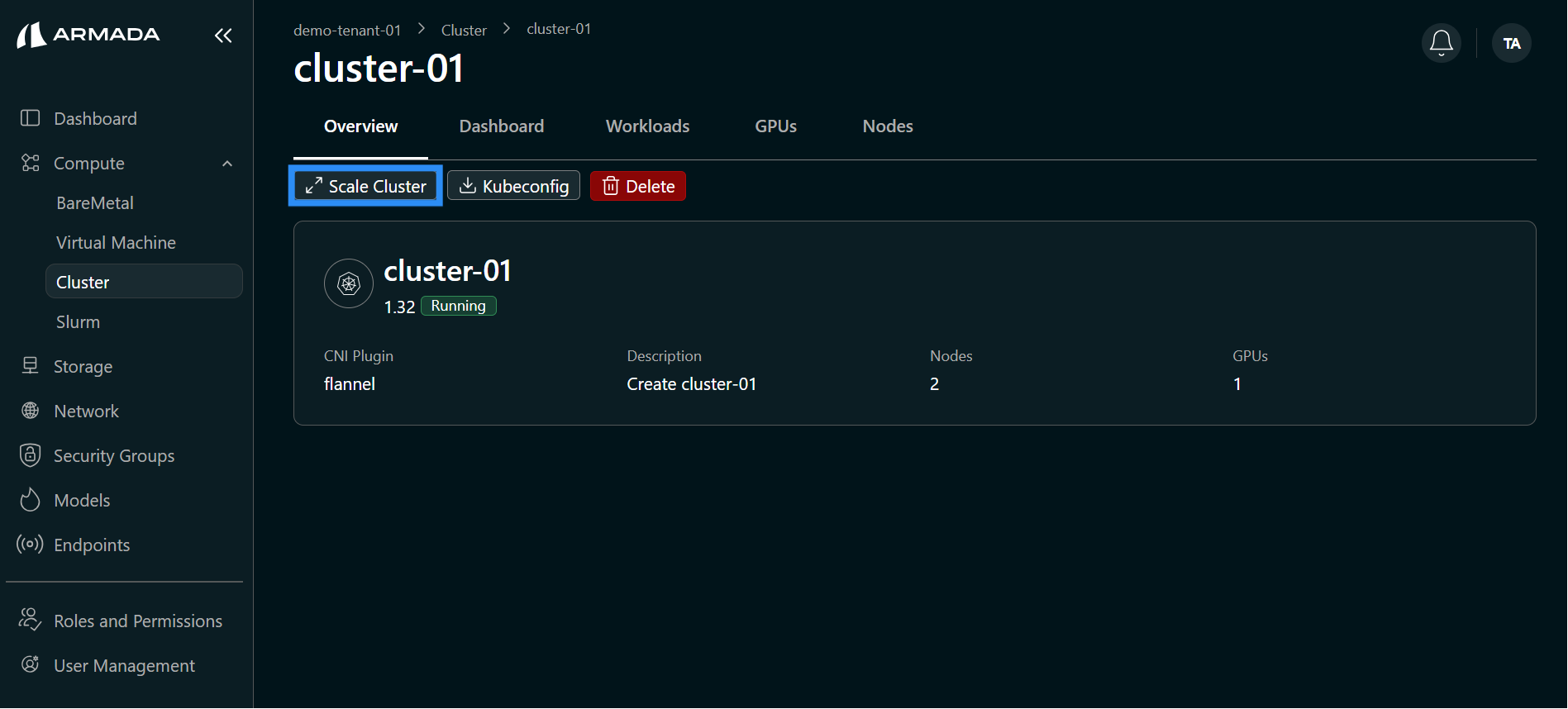
Navigate to Workloads → Catalog:
Step 2: Select Template
Choose a workload template:
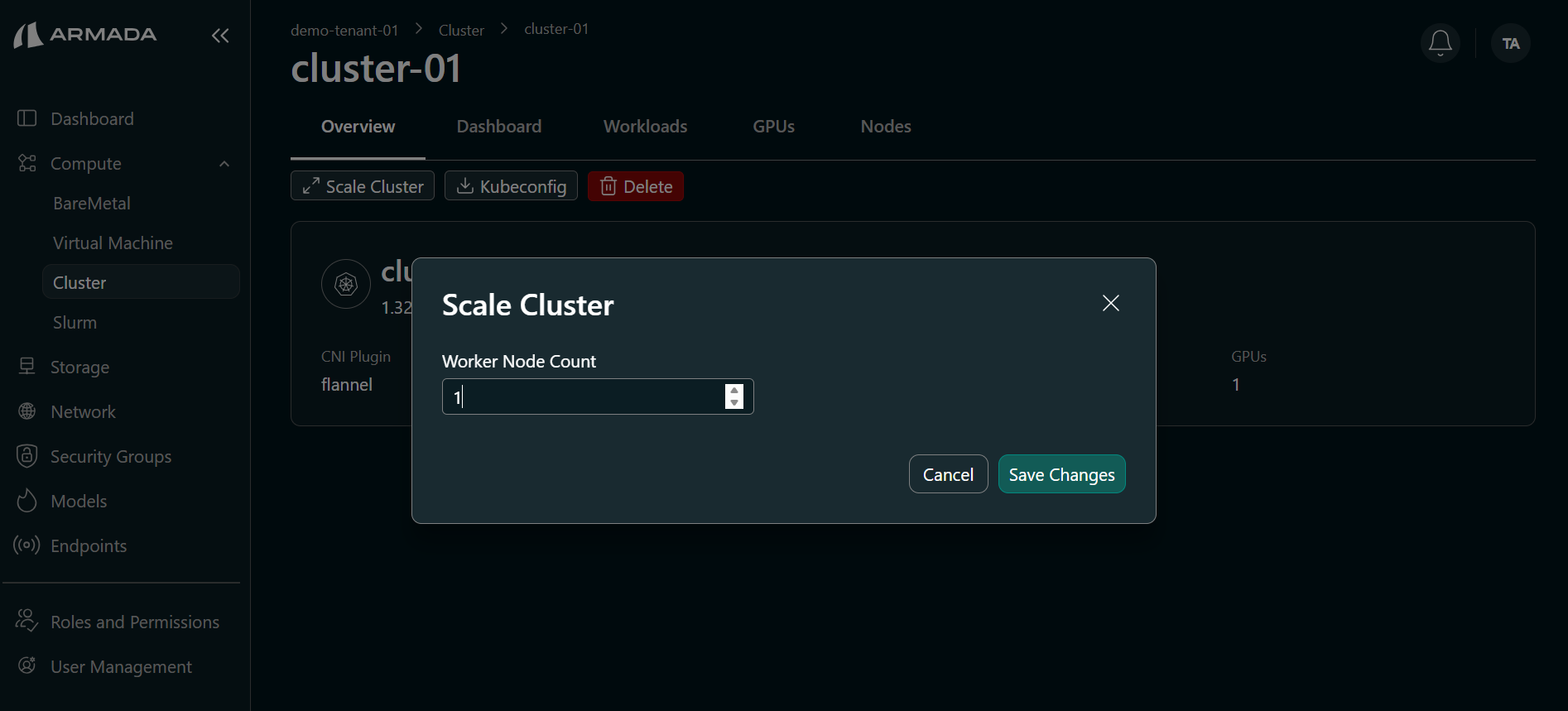
Review template details:
- Description
- Resource requirements
- Configuration options
- Input/output specifications
Step 3: Customize Workload
Modify template parameters:
- Resource allocation
- Environment variables
- Input data location
- Output directory
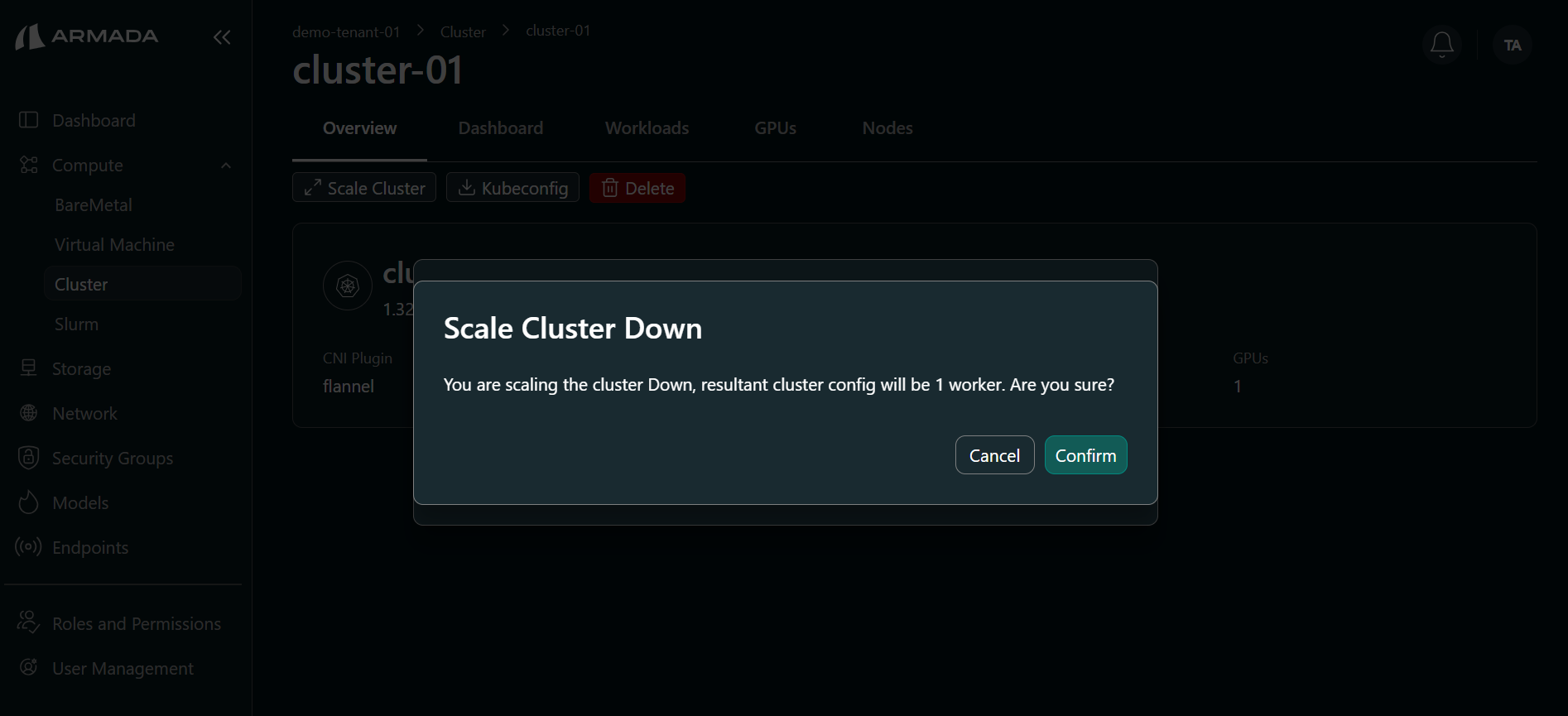
Step 4: Deploy Workload
Deploy the customized workload:
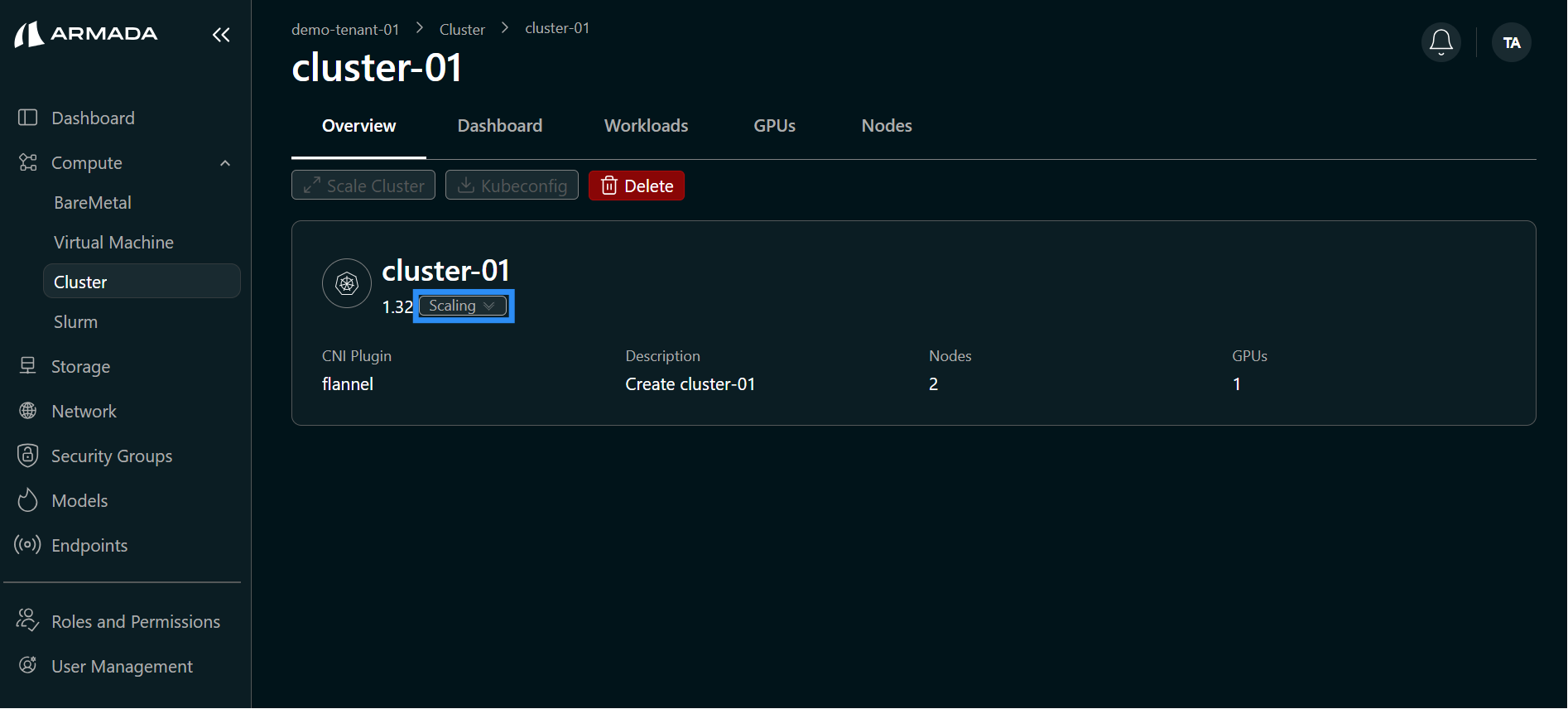
Monitor Workloads
View Workload Status
Check running workloads:
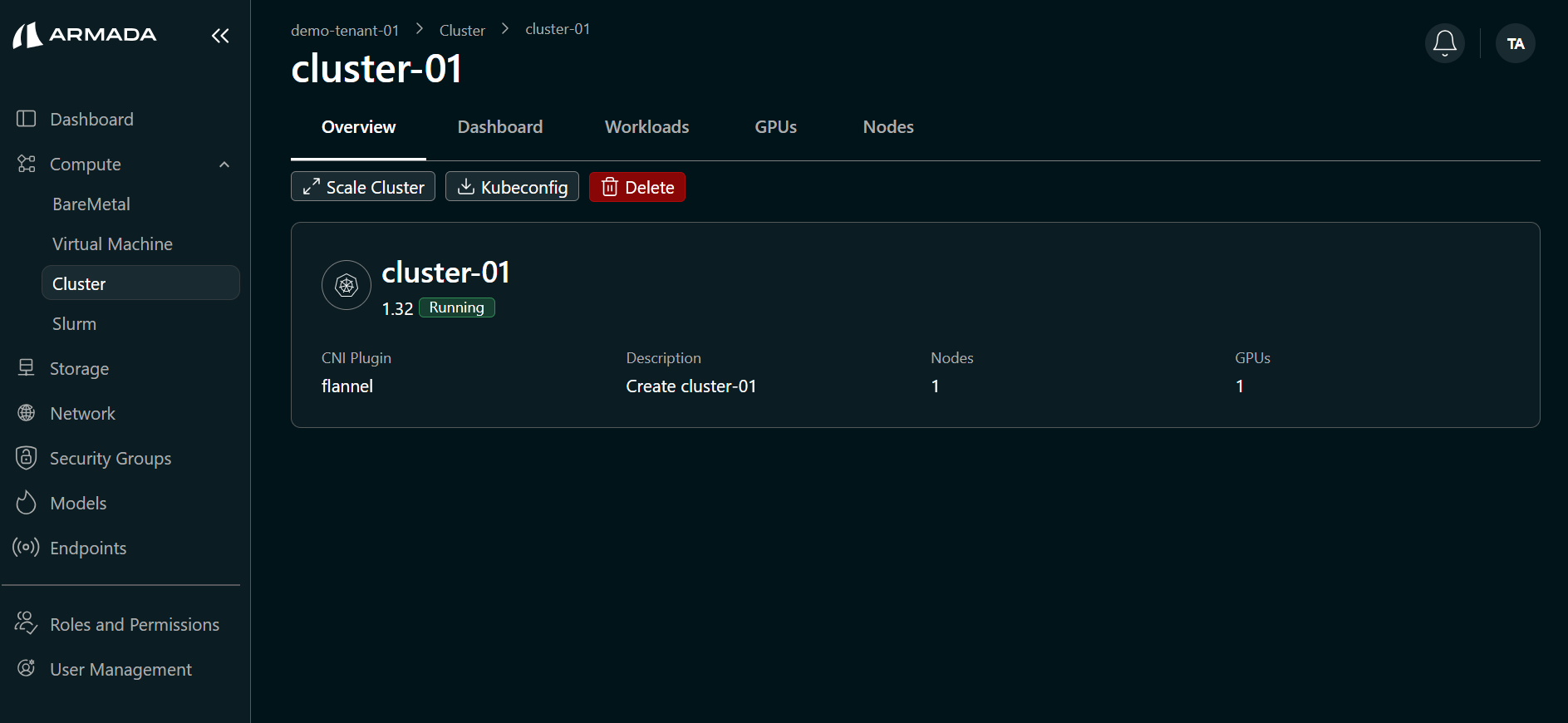
Status indicators:
- Running - Workload is executing
- Pending - Waiting for resources
- Completed - Job finished successfully
- Failed - Workload encountered error
View Logs
Access workload logs:
kubectl logs <workload-name>
Or through UI:
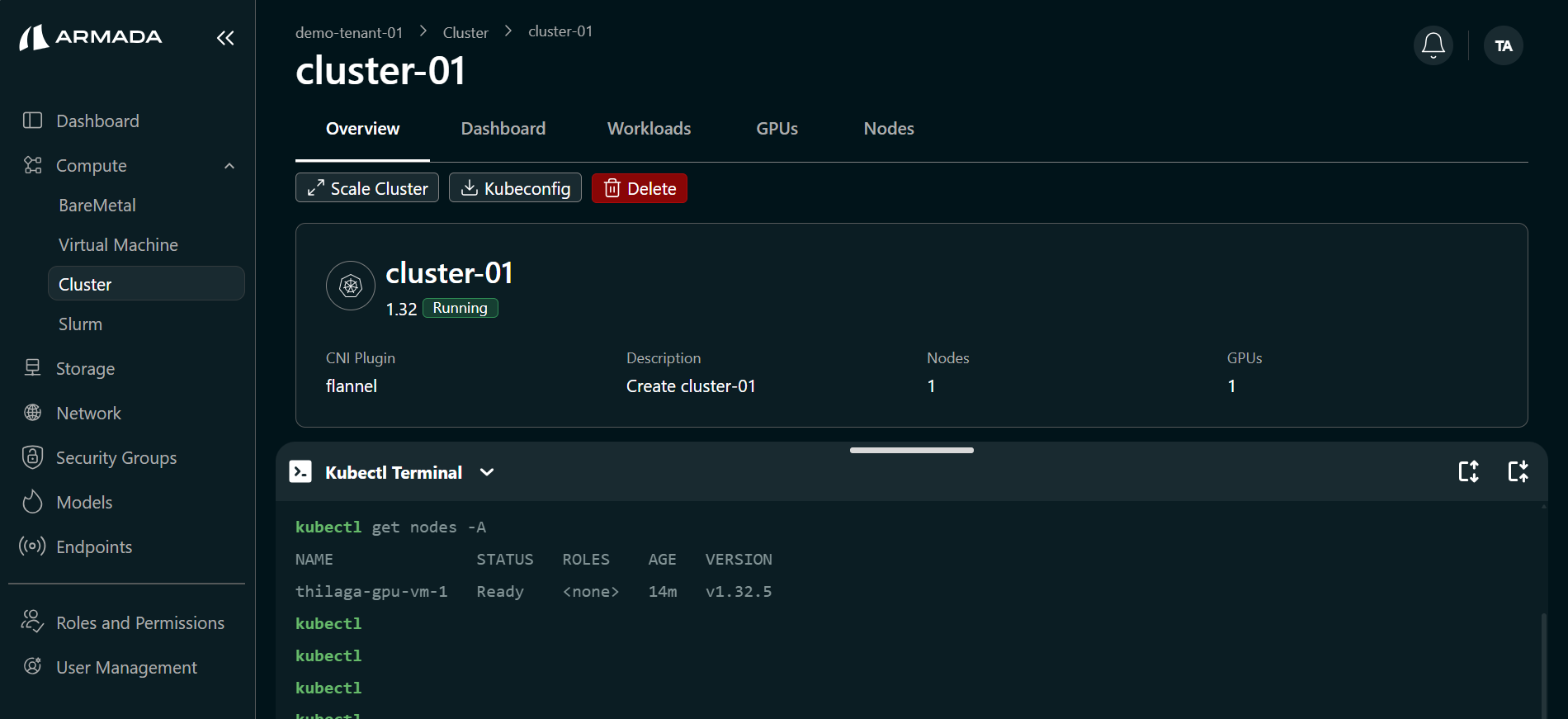
View:
- Standard output
- Error messages
- Application logs
- System events
Monitor Metrics
Track workload performance:
- CPU usage
- Memory usage
- GPU usage
- Network I/O
- Disk I/O
Delete Workload
Stop Workload
Stop running workload:
- Select workload
- Click Stop
- Confirm stopping
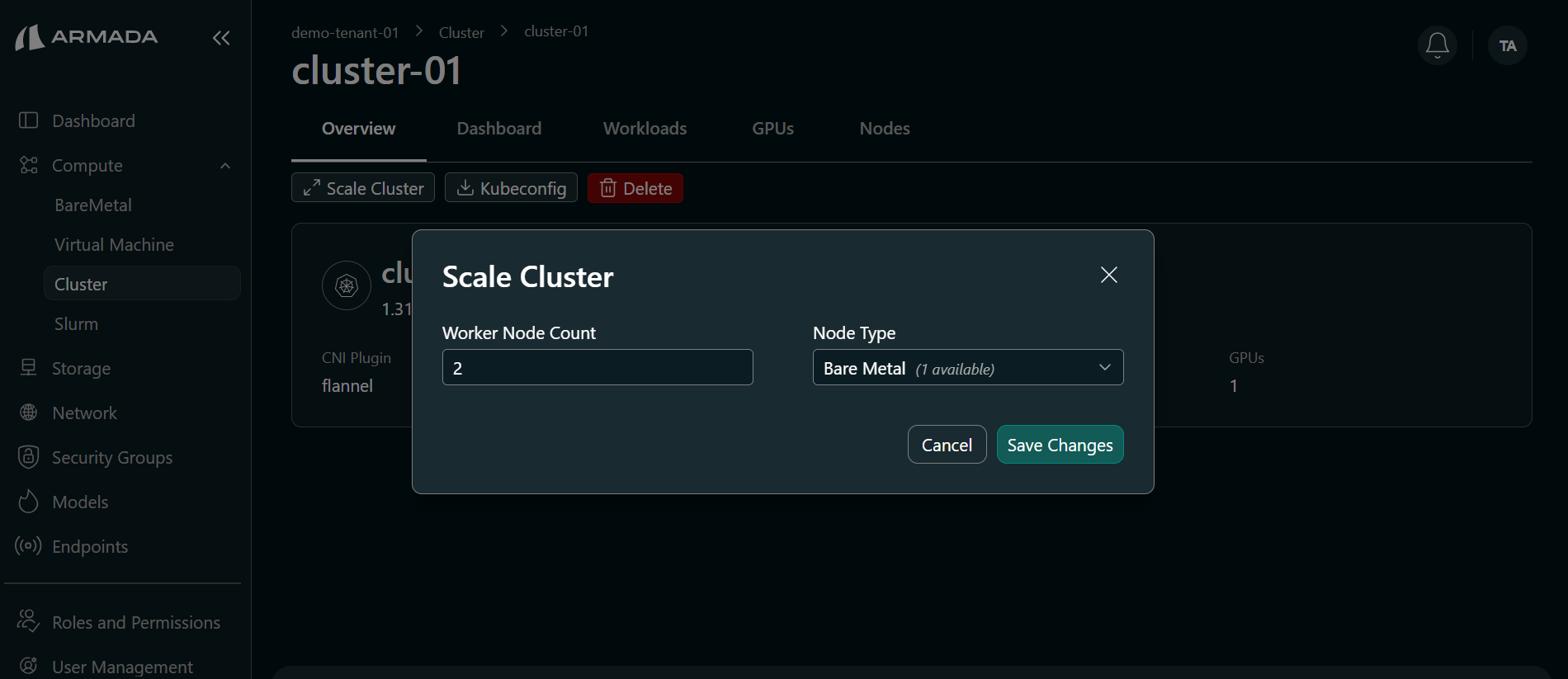
Delete Workload
Remove workload permanently:
- Select workload
- Click Delete
- Confirm deletion
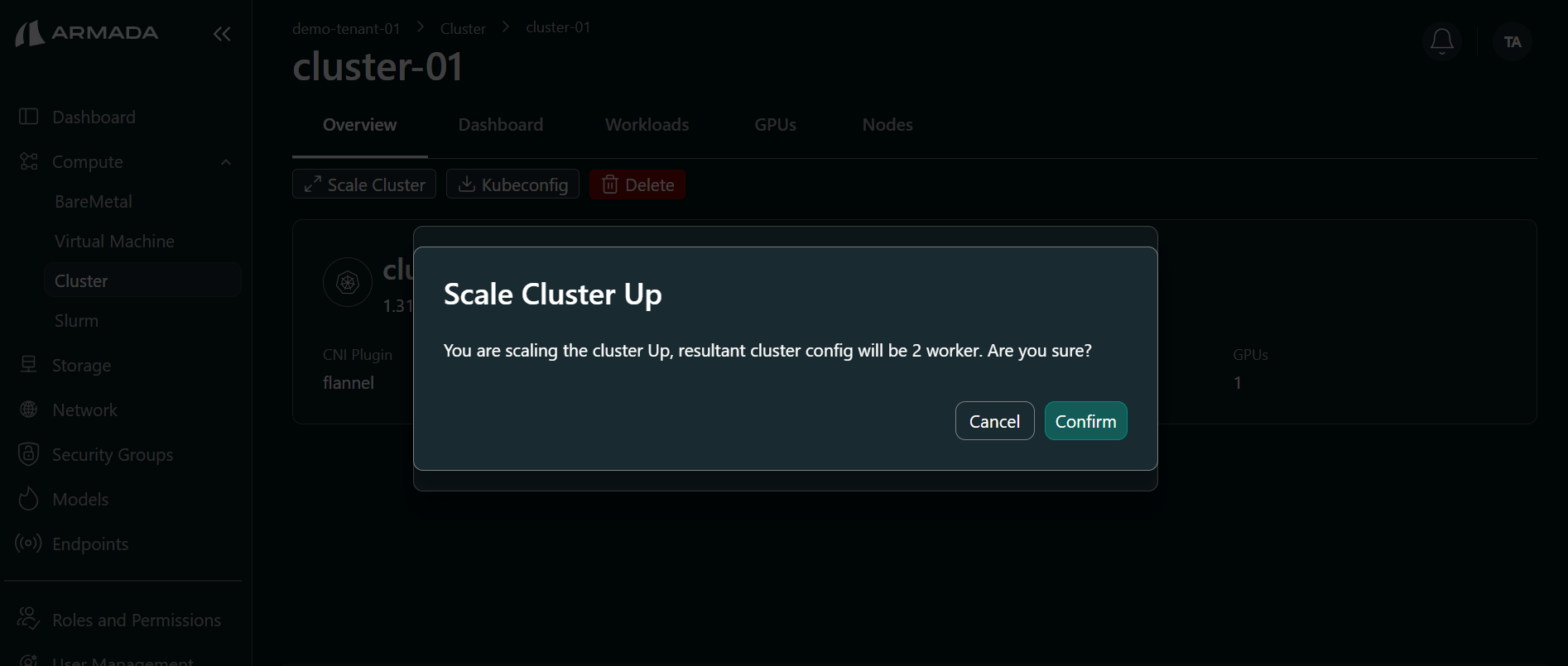
Resources will be freed and returned to your quota.
Best Practices
Workload Design
- Use container best practices
- Include health checks
- Handle signals gracefully
- Log to standard output
Resource Management
- Request only needed resources
- Set appropriate limits
- Monitor actual usage
- Adjust over time
Error Handling
- Implement retry logic
- Handle timeouts
- Clean up resources on exit
- Log errors effectively
Common Workloads
Data Processing
- ETL pipelines
- Data transformation
- Batch processing
Machine Learning
- Model training
- Hyperparameter tuning
- Feature engineering
Web Services
- APIs
- Web applications
- Microservices